How to Find Games Your PC Can Run
You found a game that looks fun. Then the system requirements appeared.
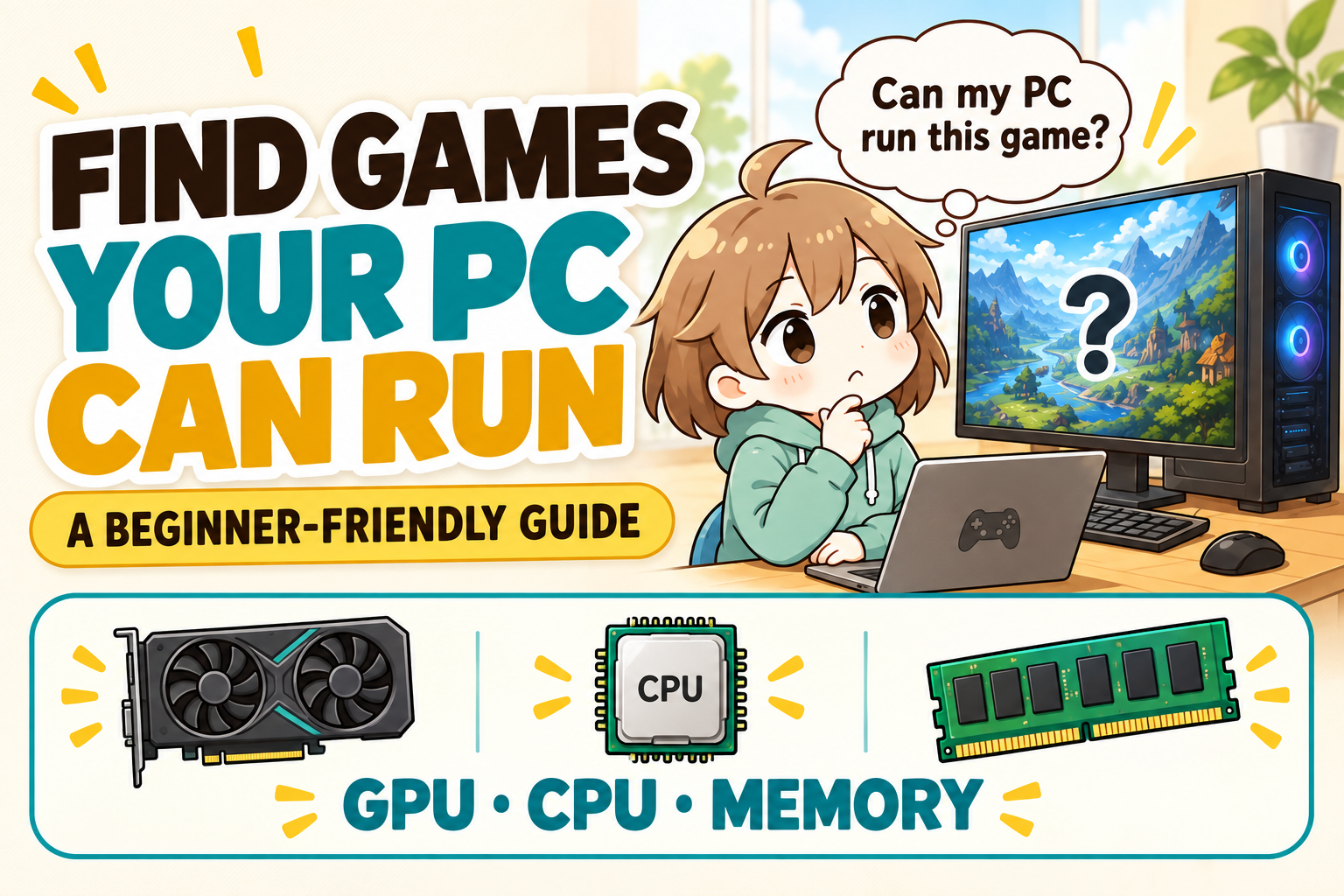
GPU, CPU, memory—suddenly choosing a game feels like reading a spell book. This guide gives beginners a simpler route.
You open Steam and spot a game that looks brilliant.
You want to play it. You really want to play it. Then one question arrives:
“Can my computer actually run this game?”
Before wrestling with a long specifications table, start with the basic idea: every game asks for a different amount of PC power.
The useful question is whether your PC suits the game
A game with simple graphics may run on an everyday laptop. A large modern game may need a dedicated gaming PC. Even one game can change dramatically when you add high-resolution textures, shaders, or mods.
So the question is more specific than “Is my PC powerful?”
Start with three PC parts
Graphics
Draws the game world. It often affects image quality, resolution, and frame rate.
Processing
Handles instructions and calculations behind characters, physics, and busy scenes.
Working space
Holds information the game and other open apps need right now.
Why the model names feel confusing
A requirements page may mention names such as GeForce RTX 4060, GeForce GTX 1650, Radeon Graphics, or Intel UHD Graphics.
They all sound technical, but the names alone do not clearly tell a beginner which is faster. Store descriptions such as “high performance” or “fast” can also describe everyday use rather than gaming.
You do not need to memorize every model. You only need a reliable way to compare your equipment with the game you chose.
Three ways to check a game
Read the official requirements
The publisher’s current requirements are the main reference. Compare both the minimum and recommended specifications, including any resolution or frame-rate notes.
Open a beginner game guide
A game-specific guide can explain which PC parts matter most and what different play targets may feel like.
Scan your Windows PC
PCGameChecker reads your CPU, GPU, and memory and gives you a simple five-star estimate for the selected game.
Different adventures stress different parts
High-detail open worlds often place more pressure on graphics and memory. Games filled with characters, simulation, or physics can ask more of the CPU. Competitive games also benefit from steady frame rates and a stable internet connection.
Minecraft is another good example: normal play, a huge world, and a shader-heavy mod setup can have very different needs.
The game title is only the beginning. Resolution, graphics settings, mods, and your own comfort target matter too.
Already know which game you want?
Choose a game from the adventure board. Each guide explains the game, its official requirements, the parts worth checking, and simple settings to try.
Can My PC Run These Games?
Explore beginner guides for Minecraft, Fortnite, VALORANT, Genshin Impact, Apex Legends, Monster Hunter Wilds, and more.
Open the game guide list →The quickest route: check your current PC
If model numbers still look like secret codes, let the app collect the basic information. PCGameChecker shows a five-star estimate first, then lets you open the technical explanation when you want it.
The result is a starting point rather than a promise. Game updates, settings, drivers, and background apps can change real performance.
PCGameChecker for Beginners
Scan your Windows PC, choose a game, and get a simple compatibility estimate.
Open the PCGameChecker guide →Your next adventure starts with one small check
Choose the game first. Check the GPU, CPU, and memory. Then decide whether your current PC, adjusted settings, or different equipment best suits the journey.
You do not need to learn every specification before playing your first PC game. Start with the answer you need today, and learn the technical details one step at a time.